Guide
Work From Home Professionals: Ensuring Continuous Internet During Outages

TL;DR
Losing internet during an outage means lost income for remote workers. Here's how to keep your modem, router, and Wi-Fi alive with UPS and power station backup, plus a failover plan so you never drop a call.
I work from home most weeks, and the single failure that has cost me real money isn’t a dead laptop or a crashed app. It’s the internet going down mid-call. Power flickers for half a second, the modem reboots, and I spend the next three minutes apologizing to a client while my router slowly blinks its way back to life. By the time I’m reconnected, the meeting has moved on without me.
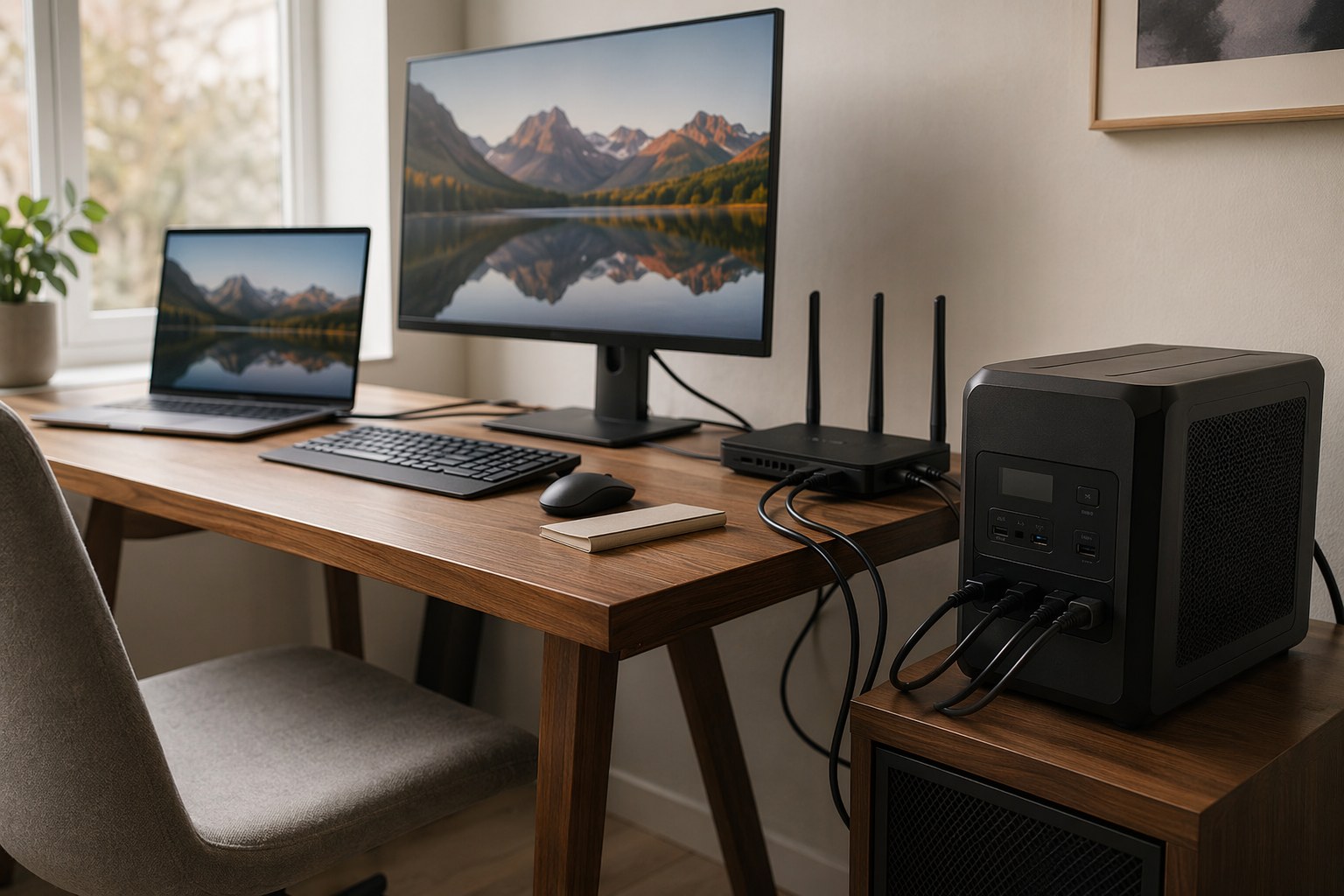
Here’s the thing most people get wrong: your laptop already has a battery. That’s the easy part. The fragile link in a remote work setup is the chain of little always-on boxes that deliver your connection, none of which have batteries of their own. The modem, the router, the mesh nodes, the ONT on the wall if you have fiber. Lose power to any one of them and you’re offline, even though your laptop is sitting there at 90%.
This guide is about protecting that chain. I’ll walk through what your network gear actually draws, how to keep it running with a UPS or a power station, and how to build a failover plan so a 30-second outage never turns into a 30-minute scramble.
Your Internet Doesn’t Run on Your Laptop
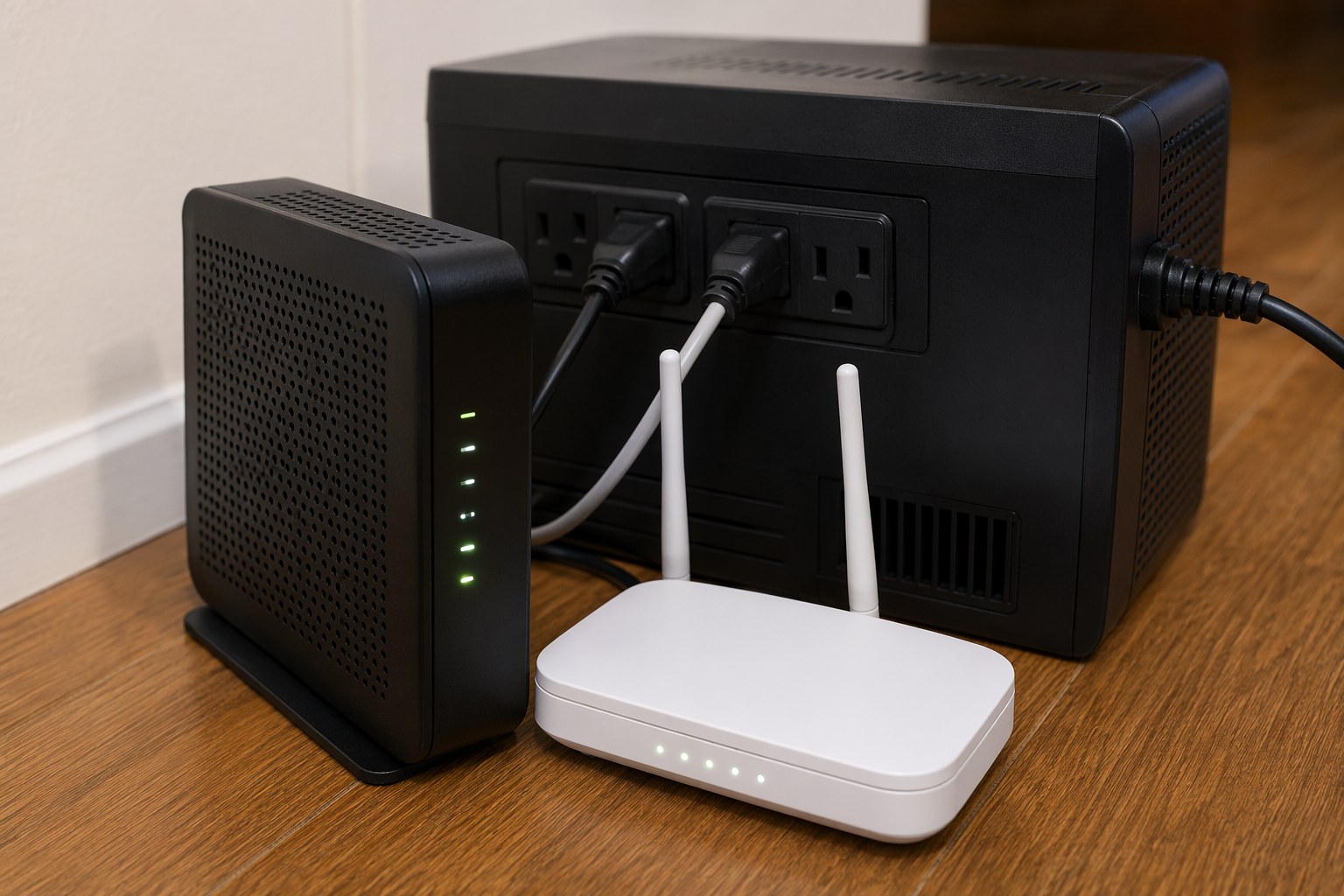
Walk the actual path your data takes and you’ll see how many points of failure there are. Signal comes into the house and hits your modem or, on fiber, an optical network terminal (ONT). That feeds your router. The router feeds your Wi-Fi, often through one or more mesh satellites scattered around the house. Every one of those devices needs wall power, and every one of them resets the instant the power drops.
A modem reboot alone takes 1-3 minutes to reacquire signal. A mesh system can take longer to re-form its network. So a power blip that lasts a fraction of a second still knocks you offline for minutes. That asymmetry, a tiny outage causing a large disruption, is exactly what battery backup exists to eliminate.
The good news is that this gear sips power. Here’s what a typical remote-work connectivity stack actually pulls:
| Device | Typical Draw | Notes |
|---|---|---|
| Cable/DSL modem or fiber ONT | 8-15W | Always on, tiny load |
| Wi-Fi router | 10-18W | Higher-end gaming routers more |
| Mesh satellite (each) | 5-12W | Two or three is common |
| VoIP/desk phone base | 3-8W | If you use one |
| Network switch (small) | 5-15W | If you have wired gear |
Add it up and a complete home network is usually 25-50W. That’s nothing. It’s the reason this problem is so solvable: keeping your internet alive costs a fraction of the energy your monitor uses. The challenge isn’t capacity, it’s making sure the power never interrupts in the first place.
The Instant Fix: A UPS on Your Network Gear
For the half-second flickers and brownouts that cause modem reboots, you want a UPS (uninterruptible power supply). A UPS sits inline between the wall and your gear and switches to its internal battery in under 10 milliseconds when grid power wavers. Your modem and router never even notice. No reboot, no reacquisition delay, no dropped call.
This is the piece I tell every remote worker to buy first, because it solves the most common and most annoying failure. You don’t need anything huge. Your network load is so small that even a modest UPS runs it for a long time.
CyberPower CP1500AVRLCD
The CyberPower CP1500AVRLCD is the unit I keep under my own desk, and it’s the one I recommend by default. At 1500VA / 900W it has far more capacity than a modem and router need, which is the point: at a 30W network load, the runtime stretches to a couple of hours, plenty to ride out the typical short outage entirely on battery.
What earns its keep is the AVR, automatic voltage regulation. In a lot of homes the real enemy isn’t a full blackout but constant brownouts and sags, especially when the AC compressor or a space heater kicks on. AVR quietly corrects those dips without ever touching the battery, so your gear gets clean, stable voltage and the battery stays saved for genuine outages. The LCD shows your exact load and estimated runtime, and the USB data port lets software shut a desktop down gracefully if the battery does run low. For a deeper rundown of sizing and outlet counts, our best UPS for home office guide breaks it all down.
APC Back-UPS Pro 1500 (BR1500MS2)
The APC Back-UPS Pro 1500 is the one I reach for when the desk also has a desktop PC with an active-PFC power supply. It matches the CyberPower on capacity and AVR, but adds pure sine wave output on battery, which those fussier power supplies prefer. It also has two USB charging ports built into the front for keeping a phone topped up during an outage.
Between the two, I’d let price decide for a pure network-protection job. The APC is worth the small premium if you’re running a desktop or want sine wave output. If you want to manage either of these remotely and get outage alerts on your phone, look at units with remote management, covered in our best UPS with cloud monitoring roundup, which matters a lot if you’re ever traveling while your home network needs to stay up.
The Long Haul: A Power Station for Multi-Hour Outages
A UPS solves flickers and short outages beautifully, but its battery is small. Once you’re staring down a multi-hour or all-day outage, you want a power station, which trades the UPS’s instant switchover for vastly more capacity. The trick that makes a power station feel like a giant UPS is pass-through mode: you plug the station into the wall, plug your gear into the station, and it passes grid power through normally while charging itself. When the grid drops, it switches to battery in 10-20 milliseconds. For laptops and network gear, that gap is invisible, the laptop battery bridges it and the router never reboots.
Because your network load is so light, a 1000Wh station running just a modem and router can keep you connected for well over a day. Add your laptop and a monitor and you’ve still got a comfortable full workday.
EcoFlow DELTA 3 Plus
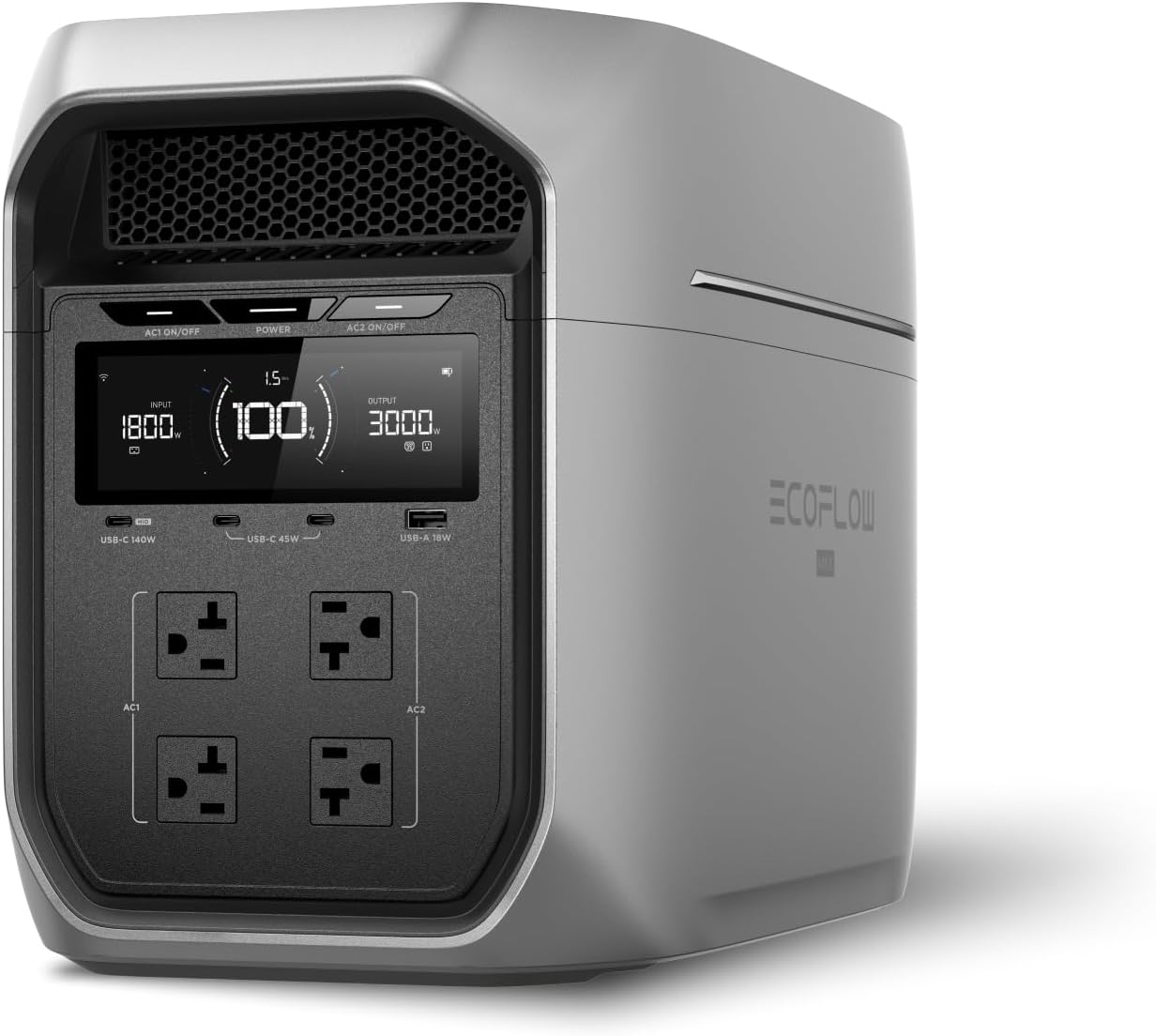
The EcoFlow DELTA 3 Plus is my default recommendation for a work-from-home desk. It’s a 1024Wh LFP unit with 1800W of output, and its UPS switchover is genuinely fast, under 10ms, which is the spec that matters here. Run your whole connectivity stack plus a laptop and monitor (call it 120-150W) and you’re looking at roughly 6 hours of runtime; run just the network gear and it’ll go for days.
Two things make it ideal for this job. First, it’s quiet, at a light office load the fan barely spins, so it won’t intrude on a call. Second, it recharges from empty in under an hour on wall power, so after a daytime outage it’s ready again by evening. Sized and sorted for the full desk, it’s the same pick our power station for work-from-home professionals guide lands on.
Anker SOLIX C1000
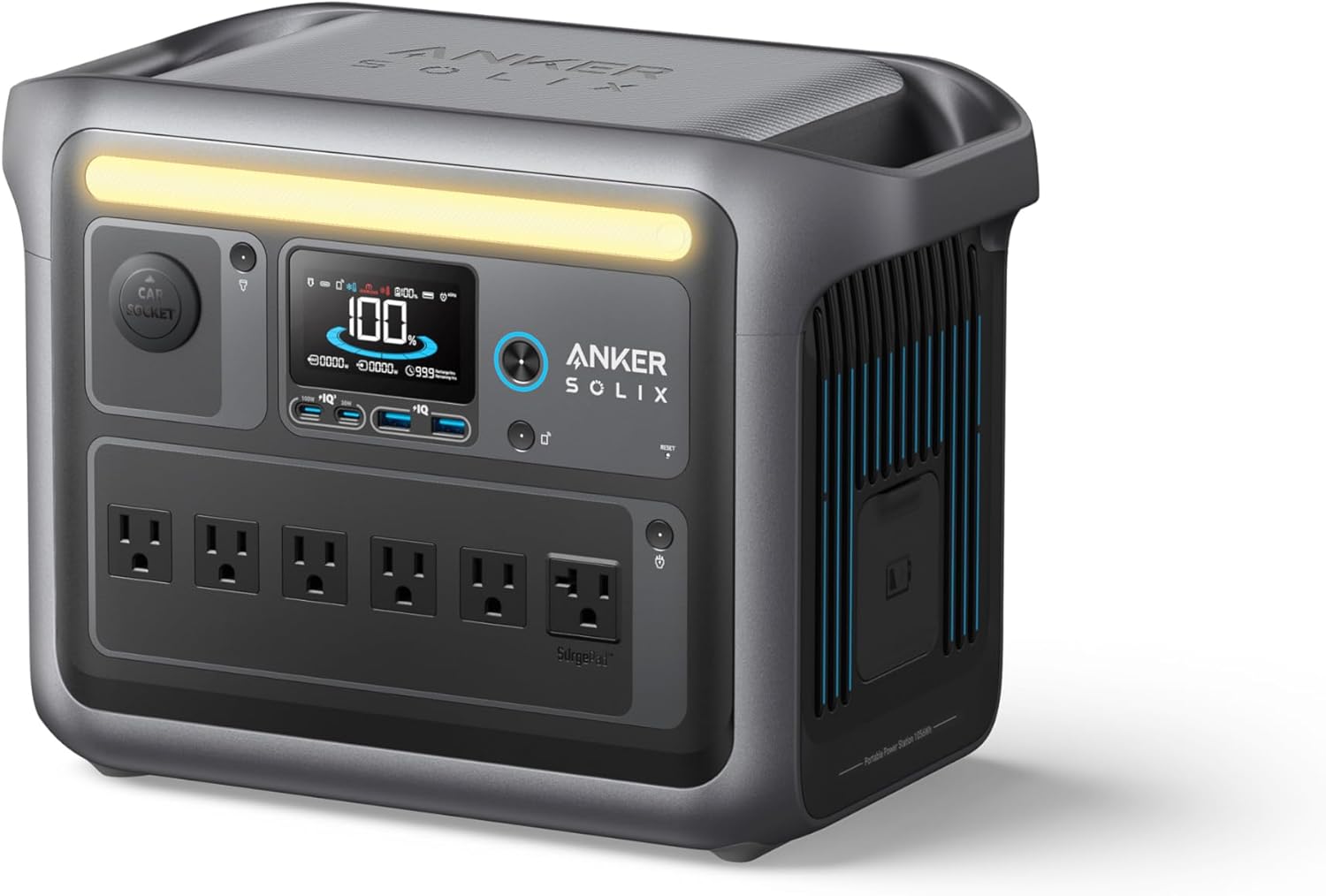
The Anker SOLIX C1000 is the value alternative I point people to. At 1056Wh and 1800W it slightly out-capacities the EcoFlow, with the same fast recharge and a clean app for checking charge level from across the room. Its UPS switchover is under 20ms, which is seamless for laptops and routers alike. It runs a touch louder at high load, but at the featherweight loads a home office produces you won’t hear it. Anker’s long warranty is a nice bonus for a device you’ll keep plugged in for years.
Bluetti AC180
The Bluetti AC180 is my grab-and-go pick, and it’s perfect if your “office” sometimes relocates, a porch, a guest room, a relative’s house during a long outage. At 1152Wh and 1800W (with brief surges to 2700W) it’s plenty for a desk, the handle makes it genuinely portable, and it hits 80% charge in about 45 minutes. If you want one unit that backs up your desk most days and comes camping on weekends, this is the flexible choice.

The Part Everyone Forgets: ISP Failover
Here’s the hard truth that catches people off guard. Keeping your modem and router powered only matters if your internet service provider’s equipment also has power. Your gear can be running flawlessly on a battery while the powered node down the street goes dark and takes your connection with it.
Coverage varies. Fiber and many cable providers keep their neighborhood equipment on battery backup for a few hours, so for short outages your powered-up gear stays online. But that backup is finite, and DSL or older cable plant can drop fast. So you need a failover plan for the times when the problem isn’t your house.
Have a cellular hotspot ready. Your phone’s hotspot is the simplest option, most carriers include at least some hotspot data, and a video call uses only about 1-2GB per hour. Keep your phone charged (your UPS and power station both have USB ports for exactly this) and know how to flip the hotspot on before you need it. For frequent outages in a fiber-or-nothing area, a dedicated 5G hotspot on a second carrier is cheap insurance.
Test the handoff before the outage. Don’t discover mid-call that your laptop won’t switch networks gracefully. Practice once: drop your Wi-Fi, connect to your phone’s hotspot, confirm your conferencing app reconnects. Knowing it takes 20 seconds turns a panic into a non-event. For the broader emergency playbook, our power outage survival guide covers the first moves to make.
How I’d Actually Set It Up
Combine the pieces and you get a layered system where each layer covers a different failure:
- Network gear on a UPS or power station, always in pass-through. Modem, router, and mesh nodes plugged in and protected so a flicker never reboots them. This is non-negotiable and the cheapest thing on the list.
- Laptop charger on the same backup. The laptop battery bridges the switchover gap, and topping it off from the backup means an all-day outage doesn’t drain it.
- Phone charged and hotspot tested. Your failover for when the ISP itself goes down, not just your power.
- A power station for outages longer than the UPS can handle. Move the low-wattage network gear onto it and you’re online for the duration.
The whole network-protection layer costs less than a single lost workday for most professionals. I think of it the way I think of the best UPS for home office recommendations, it’s not a gadget, it’s business-continuity insurance.
The Bottom Line
Your laptop survives an outage on its own. Your internet doesn’t, because it lives on a chain of tiny always-on boxes that all reboot the moment the lights flicker. Put a CyberPower CP1500AVRLCD or APC Back-UPS Pro 1500 inline for instant protection against the flickers, add an EcoFlow DELTA 3 Plus (or the value-leaning Anker SOLIX C1000, or grab-and-go Bluetti AC180) for the long outages, and keep a cellular hotspot tested and ready for when your ISP is the one that goes dark. Layer those three and you’ll be the person on the call who never drops, even when the neighborhood goes quiet.

Related Reading
- Power Station for Work-From-Home Professionals — full desk sizing and per-device draw
- Best UPS for Home Office — UPS options for desktops and network gear
- Best UPS with Cloud Monitoring — remote alerts for when you’re traveling
Recommended Power Stations
EcoFlow
EcoFlow DELTA 3 Plus
EcoFlow's newest mid-range flagship. The DELTA 3 Plus improves on the Delta 2 with faster charging, LiFePO4 chemistry, and UPS functionality — all at a lower price.
Frequently Asked Questions
Will keeping my router on a battery actually keep my internet working during a power outage?
It keeps your equipment on, which is half the battle. Whether you stay online depends on your connection type. Fiber and many cable providers keep their neighborhood equipment running on battery backup for several hours, so your modem and router being powered means you stay connected. DSL and some cable plant can drop quickly. The reliable fix is to power your modem and router with a UPS or power station and have a cellular hotspot ready as failover for the moments your ISP itself goes dark.
How long can a UPS run a modem and router?
A modem and Wi-Fi router together draw only about 15-30W. A small 600VA UPS like the kind sized for network gear will run that load for an hour or more, and a 1500VA unit like the CyberPower CP1500AVRLCD can keep it alive for several hours. If you want to span a half-day outage, move the same low-wattage gear onto a 1000Wh power station and you'll measure runtime in days, not hours.
Do I need a UPS and a power station, or just one?
It depends on how long your outages last. For brief blips and brownouts, a UPS gives you instant, gap-free switchover that protects a desktop and keeps your network up. For multi-hour outages, a 1000Wh power station gives you a full workday of runtime. Many remote workers I know run both: a UPS inline on the desktop and network gear for instant protection, and a power station in pass-through mode for the long haul.
Ready to Buy? Here's What We Recommend
Based on our testing and this guide, these are the best options for most people: